Create a wedding, Nikah or baby slideshow video from your photos
Use Smart Slideshow to turn photos into a video with names, chapter cards, slow zoom, transitions, a frame and music, then export it.
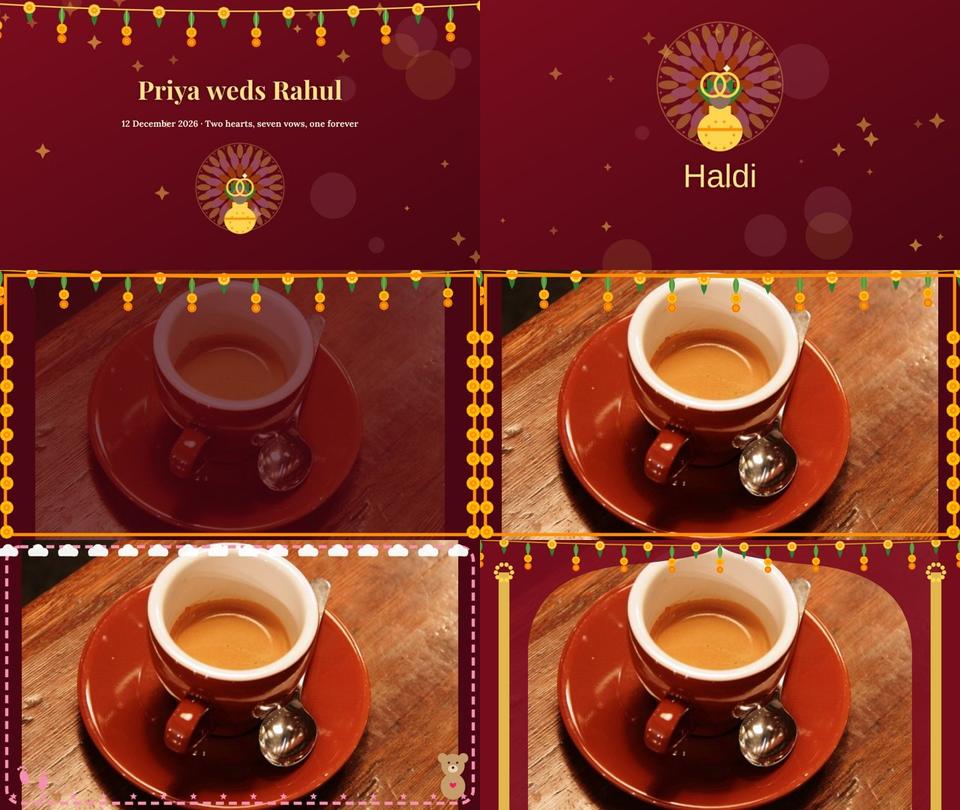
Smart Slideshow builds a complete video from a folder of photos. You choose a theme and type the names; Kreeato adds the title card, chapter cards, a slow zoom on every photo, transitions, a matching frame, music and an end card. Everything lands on the normal timeline, so you can still change any part of it.
Themes and chapters
| Theme | Chapter cards |
|---|---|
| Indian wedding (Shaadi) | Haldi, Mehendi, Sangeet, Baraat, Pheras, Vidaai |
| Nikah | Mehendi, Nikah, Rukhsati, Walima |
| Church wedding | Getting Ready, The Ceremony, The Reception |
| Wedding | Our Story, The Ceremony, The Celebration |
| Marriage anniversary | The Beginning, Through the Years, Today |
| New born baby | Welcome, First Days, Little Moments |
Step 1: Open Smart Slideshow
Click 💍 Slideshow on the Home screen, or open the Video app and click 💍 Smart Slideshow in the left panel.
Step 2: Fill in the details
- Theme: pick one from the table above.
- Format: 16:9 for YouTube and TV, 9:16 for Reels, Shorts and WhatsApp status, or 1:1 for an Instagram post.
- Names and date: these appear on the intro card, for example "Priya weds Rahul · 12 December 2026".
- Seconds per photo: 3 to 4 seconds feels relaxed; 2 seconds suits a fast reel.
- Photo transition: Dissolve is calm, Slide and Wipe feel lively, and Mix of all varies them.
Step 3: Add photos and music
Click 📷 Add photos and select all of them at once. Put them in order on your computer first (renaming them 01, 02, 03… works well), because Kreeato keeps the order you give it. Chapter cards appear when you have at least as many photos as chapters; with fewer photos you get the intro and end card only.
Music is optional. Use a song you have the right to use, especially if you will post the video publicly. Kreeato fades it in at the start and out at the end, and repeats it if the song is shorter than the video.
Step 4: Build and review
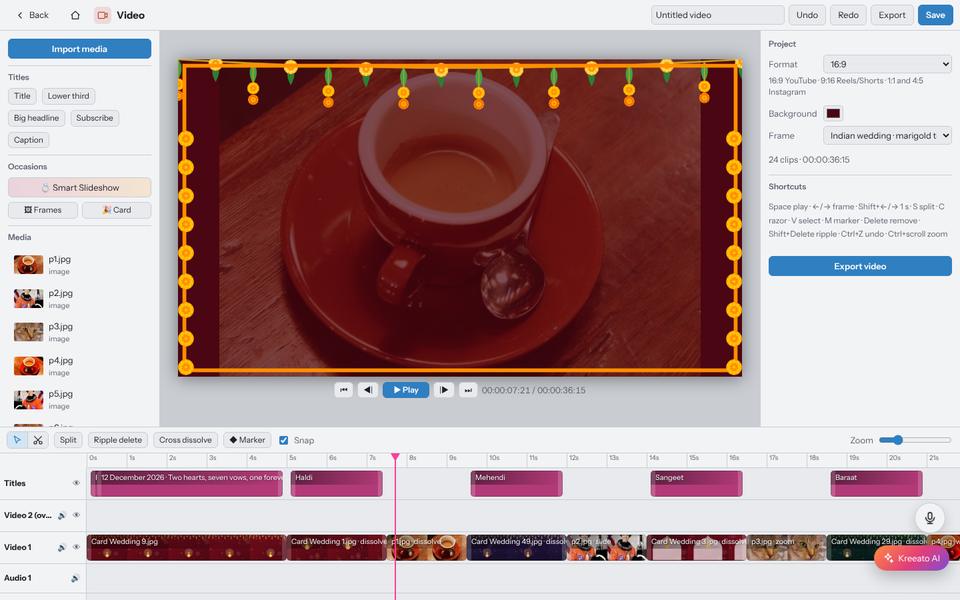
Click Build my video and press Play. Things you might want to change:
- Text on a card: click it on the Titles track and type. Names, dates and chapter titles are ordinary titles.
- One photo too long or short: drag the edge of its clip on the timeline.
- Frame: change or remove it from the Project panel, or choose 🖼 Frames for 14 options, from marigold toran and mandap arch to church bells and Nikah lanterns.
Step 5: Export
Click Export. Kreeato plays the video while it records it, so a one-minute slideshow takes about one minute to export. Keep the tab in front while it works. The file downloads as WebM, which plays in browsers, WhatsApp desktop and YouTube uploads.
Try it yourself
Kreeato runs in your browser. Nothing to install.
More from Kreeato
All tutorials →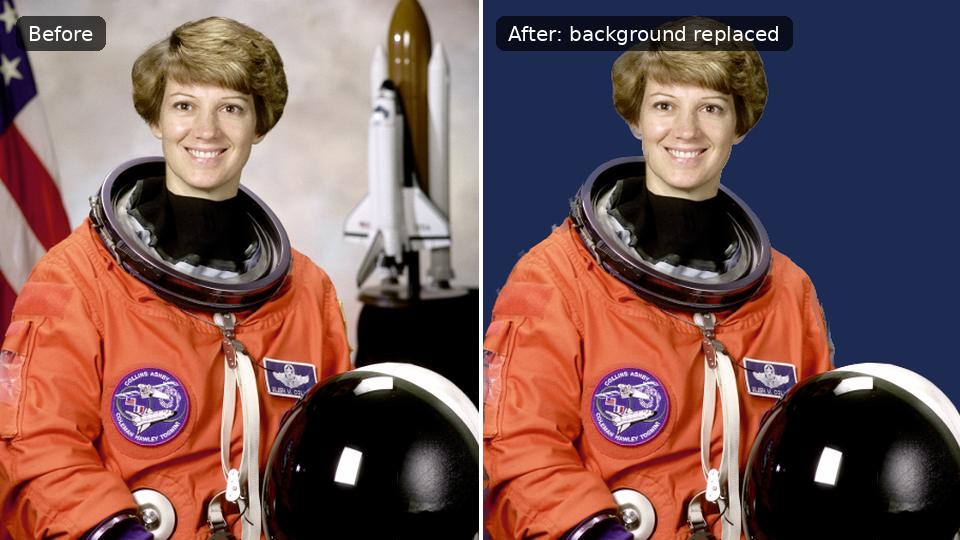 Tutorial · Photo
How to remove the background from a photo in Kreeato
Cut out a person or product in one click, keep only the object you selected, clean up the edges and export a transparent PNG.
 Tutorial · Design
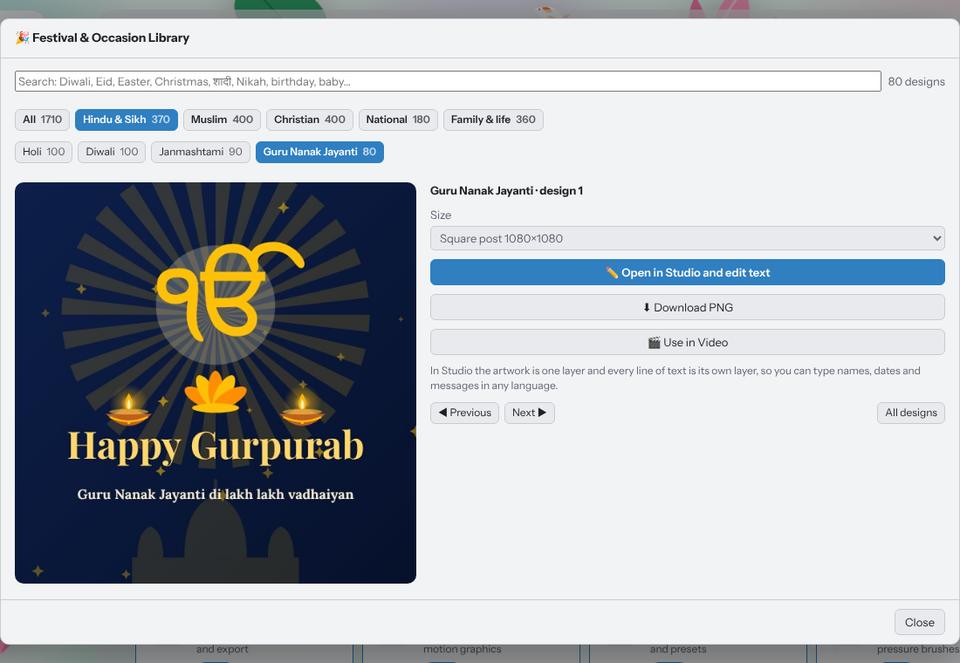
Make a festival greeting in two minutes with the Festival Library
Pick a ready design for Diwali, Eid, Christmas, Holi, Gurpurab or a birthday, type your own words in any language and download it for WhatsApp or Instagram.
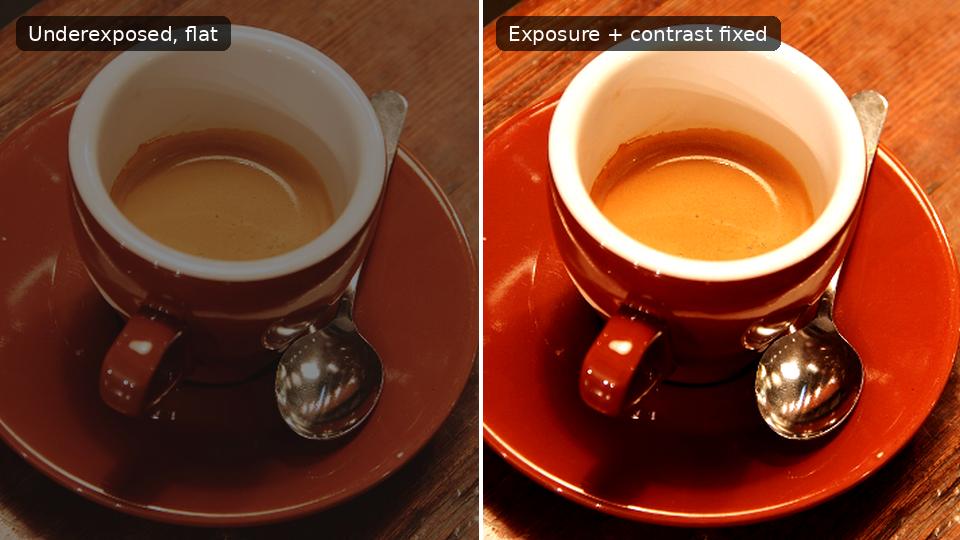 Photo editing
Exposure, contrast, highlights and shadows: a beginner's guide
What the four most-used light sliders actually do, the order to use them in, and how to avoid the overdone look.