Use Kreeato with your voice: commands in English and Hinglish
Turn on the microphone, choose your language and control Kreeato by speaking: open apps, remove backgrounds, rotate, zoom, export and more.
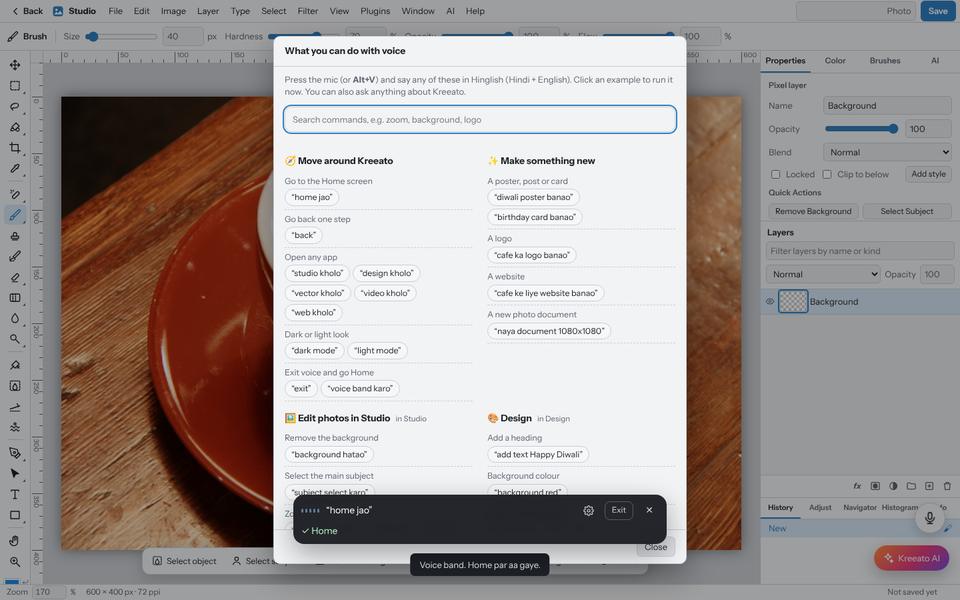
Voice commands let you work without hunting through menus. You can speak in English or in Hinglish (Hindi written in English letters), for example "background hatao" or "zoom badhao". Kreeato's own assistant understands the command; no other AI service is involved.
Before you start
- Use Chrome or Edge on a computer or Android phone. These browsers include speech recognition.
- Allow microphone access when the browser asks. If you blocked it earlier, click the lock icon next to the address bar and allow Microphone.
- Choose your language at sign-up, or later from the voice settings.
Step 1: Start listening
Click the round microphone button at the bottom right of the screen. A bar appears at the bottom showing what Kreeato hears, with a level meter so you can see the microphone is working.
Step 2: Speak a command
Speak normally, one instruction at a time. Some examples:
| You say | Kreeato does |
|---|---|
| "Studio kholo" / "open Studio" | Opens the Studio app |
| "Background hatao" | Runs Remove Background on the selected layer |
| "90 degree ghumao" | Rotates the image 90° clockwise |
| "Zoom badhao" / "fit to screen" | Zooms in, or fits the image to the window |
| "Diwali ki images dikhao" | Opens the Diwali designs in the Festival Library |
| "Shaadi ka slideshow banao" | Opens Smart Slideshow with the Indian wedding theme |
| "PNG export karo" | Exports the current design as PNG |
| "Undo" / "wapas karo" | Undoes the last step |
| "Exit" | Stops listening and goes back to Home |
For commands that could lose work, such as closing a file, Kreeato asks you to confirm with "yes" or "no".
Step 3: See every command
Say "help" or open Help › Voice Commands Guide. The guide groups commands by task and every example is clickable, so you can try a command without speaking.
If Kreeato does not hear you
- Check the level meter moves when you speak. If not, the browser is using a different microphone: choose the right one in the browser's site settings.
- Speak a little slower and avoid background music.
- Use the mic test in voice settings to check your microphone.
- Firefox and Safari do not include the speech service Kreeato uses; switch to Chrome or Edge.
Try it yourself
Kreeato runs in your browser. Nothing to install.
More from Kreeato
All tutorials →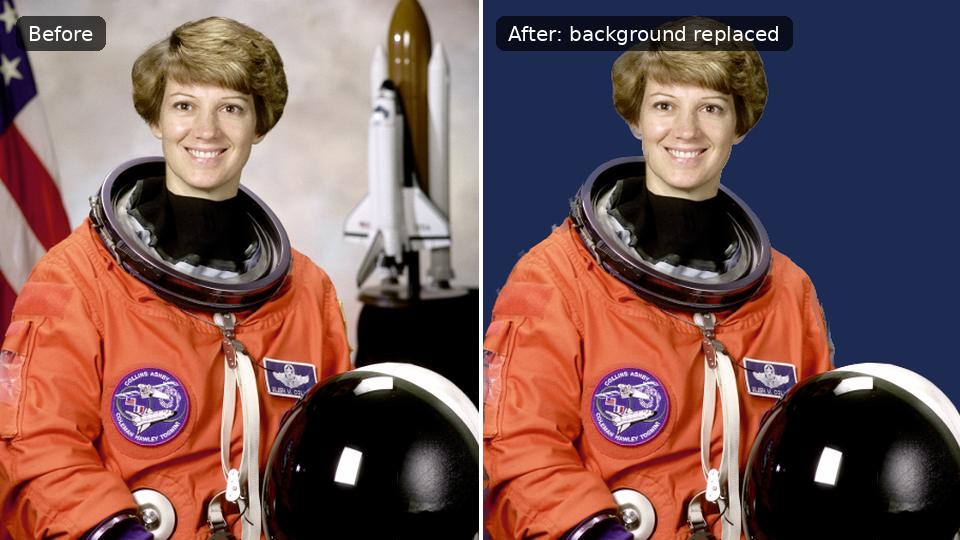 Tutorial · Photo
How to remove the background from a photo in Kreeato
Cut out a person or product in one click, keep only the object you selected, clean up the edges and export a transparent PNG.
 Tutorial · Design
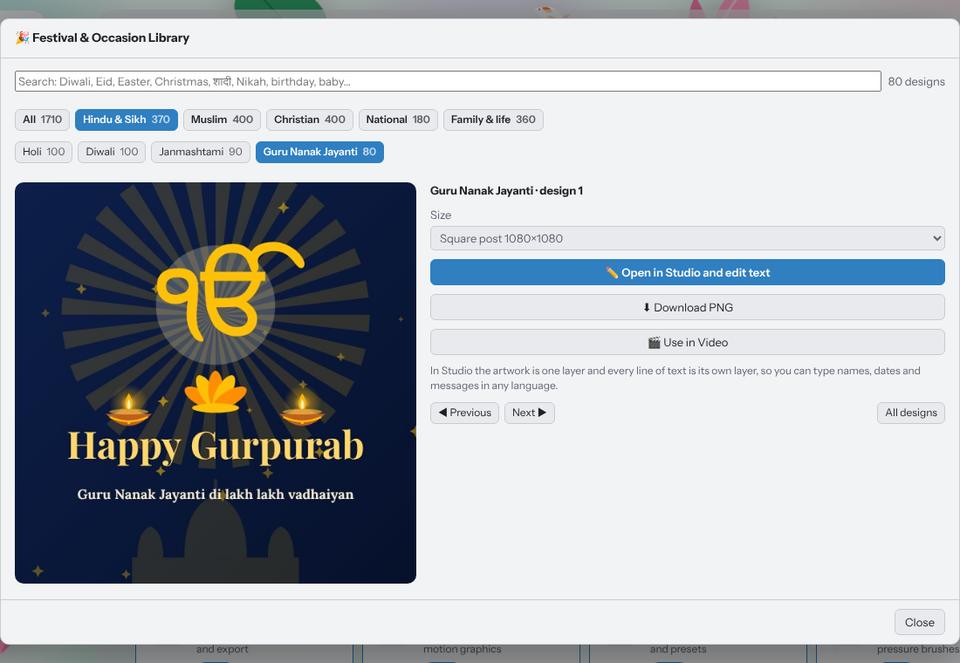
Make a festival greeting in two minutes with the Festival Library
Pick a ready design for Diwali, Eid, Christmas, Holi, Gurpurab or a birthday, type your own words in any language and download it for WhatsApp or Instagram.
 Photography
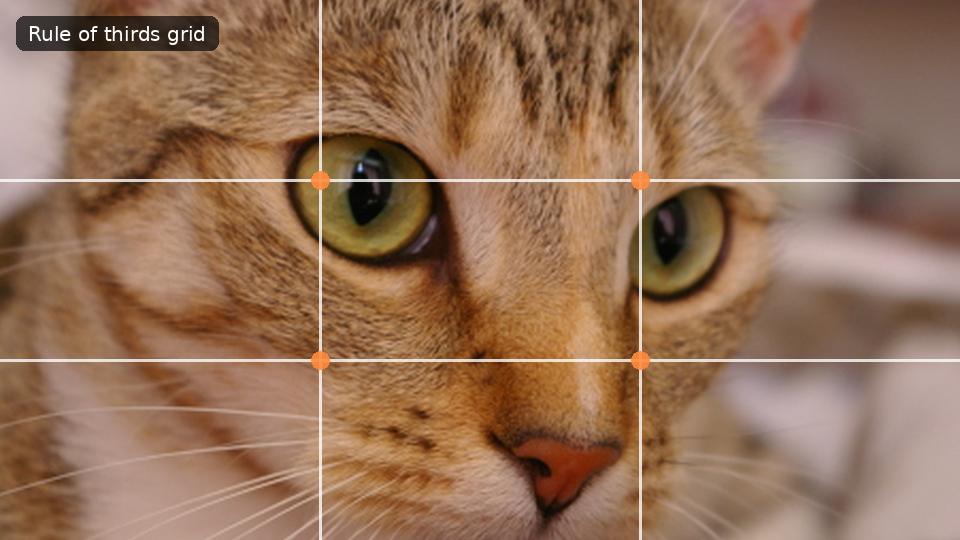
Better photos with composition: rule of thirds, leading lines and space
Simple composition ideas you can use with any phone camera, and how to crop an existing photo to make it stronger.