Open and save your designs with Google Drive, OneDrive or Dropbox
Link a cloud storage account so you can open photos from it and save your finished work back, without downloading files first.
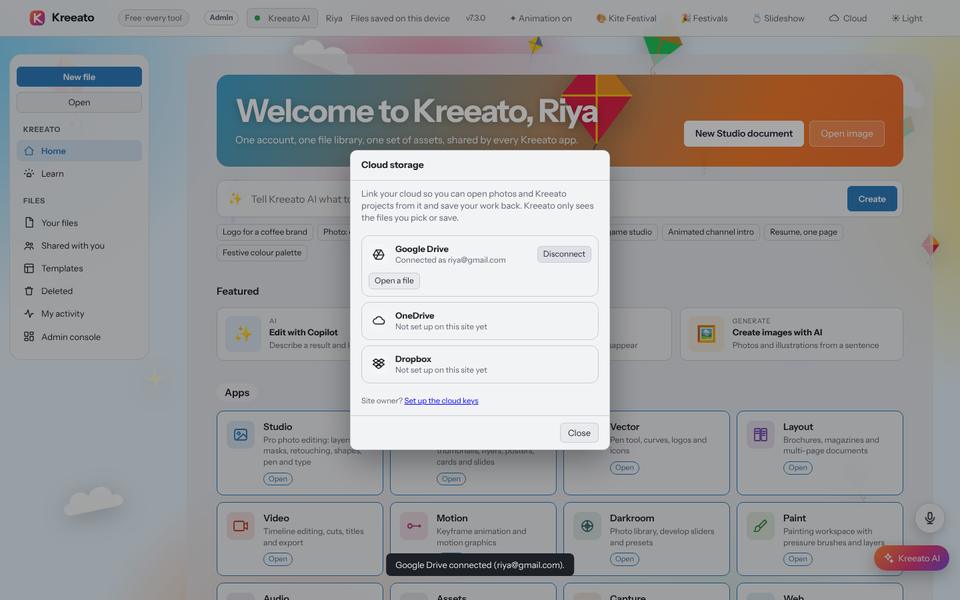
Kreeato keeps your work in your own browser by default. If you also want your files in the cloud, for example to open a client's photo from Google Drive or to keep finished designs safe, you can link a cloud storage account.
What each service can do
| Service | Open files | Save files |
|---|---|---|
| Google Drive | Yes | Yes, into a folder called "Kreeato" |
| OneDrive | Yes | Yes |
| Dropbox | Yes | Not yet |
Step 1: Link your account
On the Home screen click ☁ Cloud, or choose File › Cloud Storage…. Click Connect next to Google Drive and sign in with your Google account in the window that opens. Kreeato asks only for permission to see files you open or create with Kreeato, not your whole Drive.
Step 2: Open a file from the cloud
Choose File › Open from Cloud… (Ctrl + Shift + O). The Google file picker opens; pick a photo, a PSD or a PDF and it opens in the right Kreeato app.
Step 3: Save back to the cloud
When you finish, choose File › Save to Cloud…. Pick the format and Kreeato uploads the file to the "Kreeato" folder in your Drive. You will find it there on your phone and other computers too.
Disconnecting
Open the Cloud panel and click Disconnect. You can also remove Kreeato's access at any time from your Google Account under Security › Third-party apps with account access.
Working on more than one computer
Because Kreeato normally saves your work in the browser you are using, a design started on the office computer will not appear by itself on your laptop at home. Saving to the cloud solves this: save the file to Drive at the office, then open it with Open from Cloud… at home. For files you keep editing, save as PSD so layers travel with the file; for finished work, PNG or JPG is enough.
Good habits for cloud files
- Name files clearly before saving, for example diwali-offer-square-v2.png. A folder full of "Untitled" files is hard to search later.
- Keep one working copy. Save the PSD with layers as your master file, and export separate PNG or JPG copies to share.
- Watch your storage. Videos and large PSDs use space quickly. Google Drive shows how much you have used in its storage settings.
- Shared computers: disconnect your account when you finish, so the next person cannot open your files.
Troubleshooting
| What you see | What to do |
|---|---|
| The sign-in window does not appear | Your browser blocked the pop-up. Allow pop-ups for Kreeato and click Connect again. |
| "Access blocked" from Google | The website owner has not finished setting up Google sign-in yet. Contact the site's support. |
| A file you saved is not in the picker | Kreeato sees only files it created or that you picked before. Open it once from Drive's own picker. |
kreeato-cloud.json. The setup guide included with the hosting package explains each step.Try it yourself
Kreeato runs in your browser. Nothing to install.
More from Kreeato
All tutorials →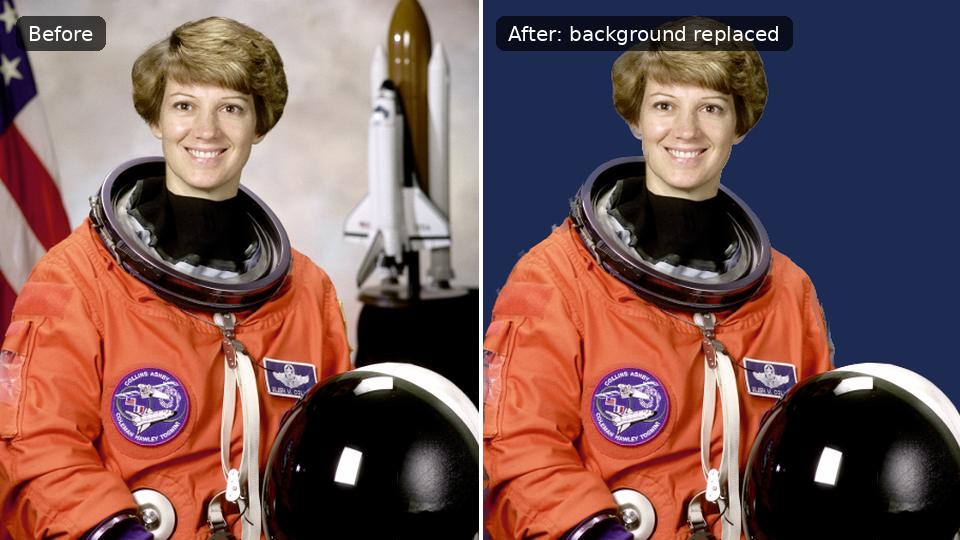 Tutorial · Photo
How to remove the background from a photo in Kreeato
Cut out a person or product in one click, keep only the object you selected, clean up the edges and export a transparent PNG.
 Tutorial · Design
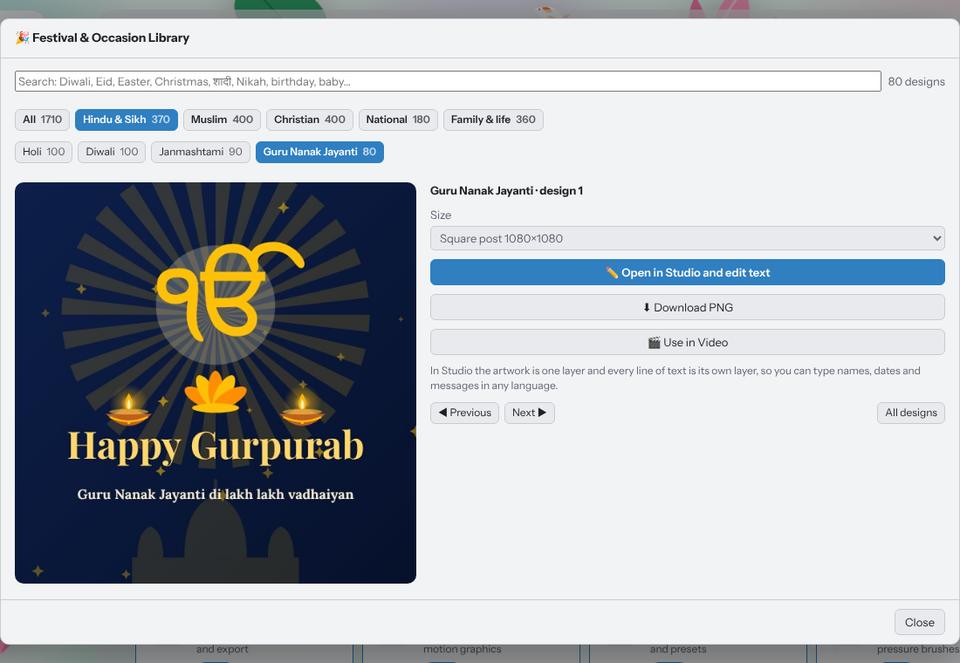
Make a festival greeting in two minutes with the Festival Library
Pick a ready design for Diwali, Eid, Christmas, Holi, Gurpurab or a birthday, type your own words in any language and download it for WhatsApp or Instagram.
 Design
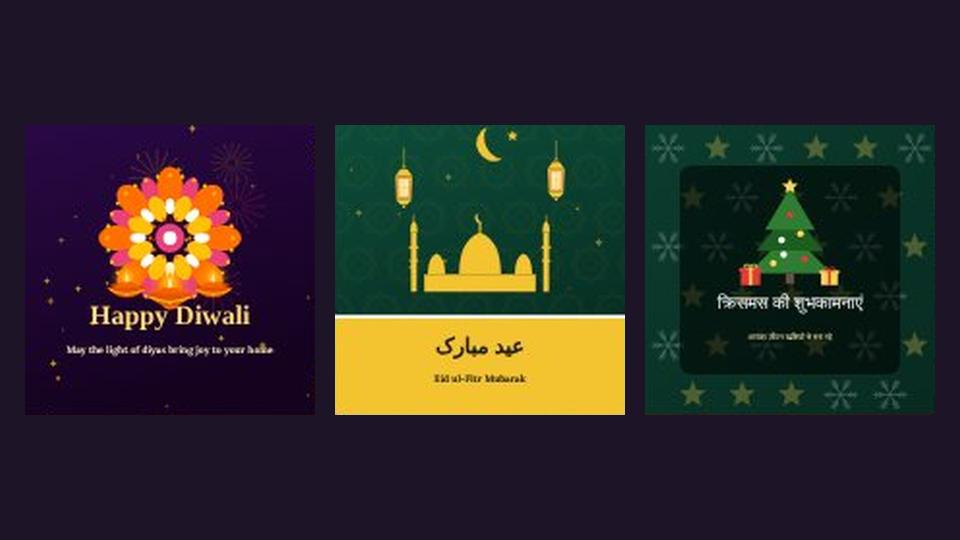
Seven tips for festival greetings that look professional
Typography, colour, contrast, language and layout tips for Diwali, Eid, Christmas, Holi and Gurpurab greetings that read well on a phone.