Product photos with a phone: a simple setup for online sellers
Light, background, angles and editing for clean product photos for Instagram shops, Meesho, Amazon and your own website, using only a phone.
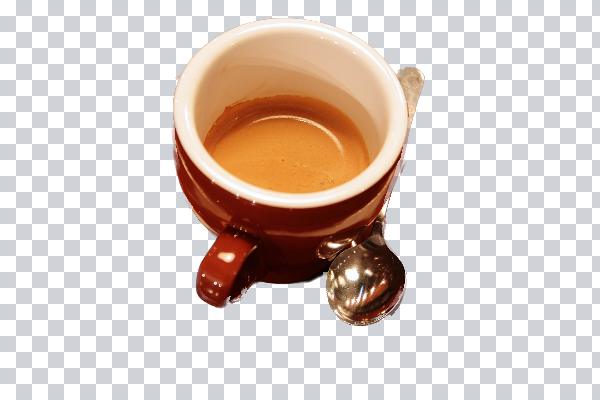
Good product photos sell. Customers cannot touch the product, so the photo has to answer their questions: what it looks like, how big it is, what the material is. You do not need a studio. A phone, a window and a sheet of white paper are enough for most small products.
Light: use a window, not the flash
Daylight from a window is soft and even. Place the product near the window, with the light coming from the side. Turn off room lights, which add a yellow or green tint. Avoid direct sunlight; it makes harsh shadows. If the shadow side is too dark, hold a white card or a sheet of paper on that side to bounce light back.
Background: plain and smooth
Tape a large sheet of white or light-grey chart paper to the wall and let it curve down onto the table. This "sweep" hides the line where wall meets table, so the product looks like it is floating in clean space. For a lifestyle look, use a wooden board, a cloth with a simple texture or a marble-effect sheet, but keep it calm so the product stands out.
Camera settings on the phone
- Clean the lens. Phone lenses collect fingerprints, which make photos hazy.
- Do not use digital zoom. Move closer instead, or use the phone's 2× lens if it has one; it distorts less than the wide lens.
- Tap on the product to focus, then slide the brightness control down a little if white areas look too bright.
- Rest the phone on a stack of books or a small tripod. A steady phone gives sharper photos, especially indoors.
Angles customers expect
Take the same set of photos for every product so your shop looks consistent: front, back, side, a close-up of the material or details, and one photo that shows the size, such as the product in a hand or next to a common object. For clothing, add a photo being worn. Marketplaces often require the first image on a plain white background, so take that one with extra care.
Editing: small, honest corrections
- Straighten and crop so the product is centred with even space around it.
- Fix brightness so the background is white, not grey. Raise exposure a little and check the product does not lose detail.
- Correct the colour if the photo looks yellow or blue. The product should look like the real thing; customers return items that do not match the photo.
- Remove dust and marks with a healing tool.
- Cut out the product if you need a pure white or transparent background. Our tutorial on removing a background shows how.
Sizes and formats
Most marketplaces accept square images of at least 1000 × 1000 pixels and ask that the product fill most of the frame. Check each marketplace's seller guidelines, because the exact requirements differ and change. Export JPG for photos with a background and PNG for cut-outs with transparency.
A checklist for every product
- Same background and light as your other products
- Sharp focus on the product
- True colour
- At least one detail shot and one size shot
- No watermark across the product (a small logo in a corner is enough)
Put it into practice
Kreeato runs in your browser. Nothing to install.
More from Kreeato
All blog →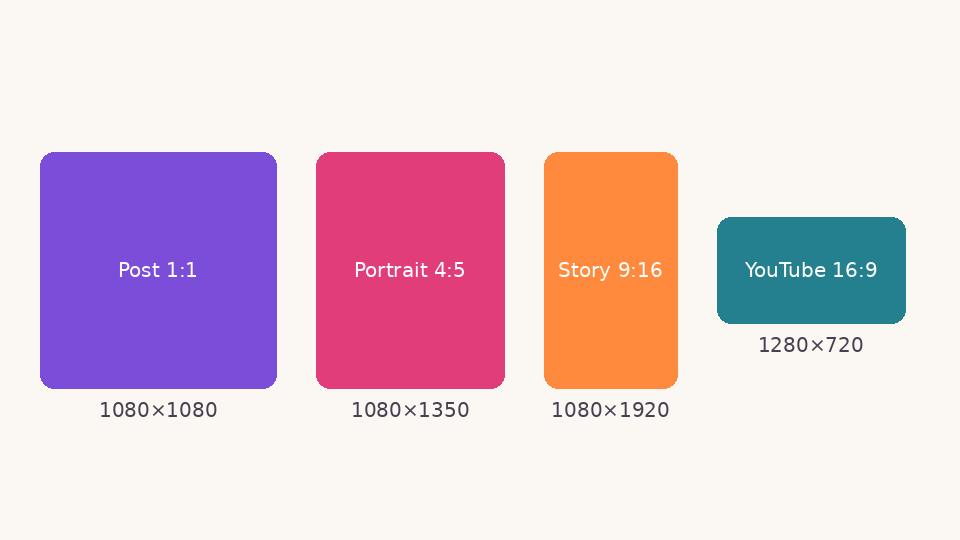 Social media
 image sizes in 2026: a simple cheat sheet
The sizes and shapes that look right on Instagram, Facebook, WhatsApp, YouTube and LinkedIn, and why designing at the correct size matters.
 Basics
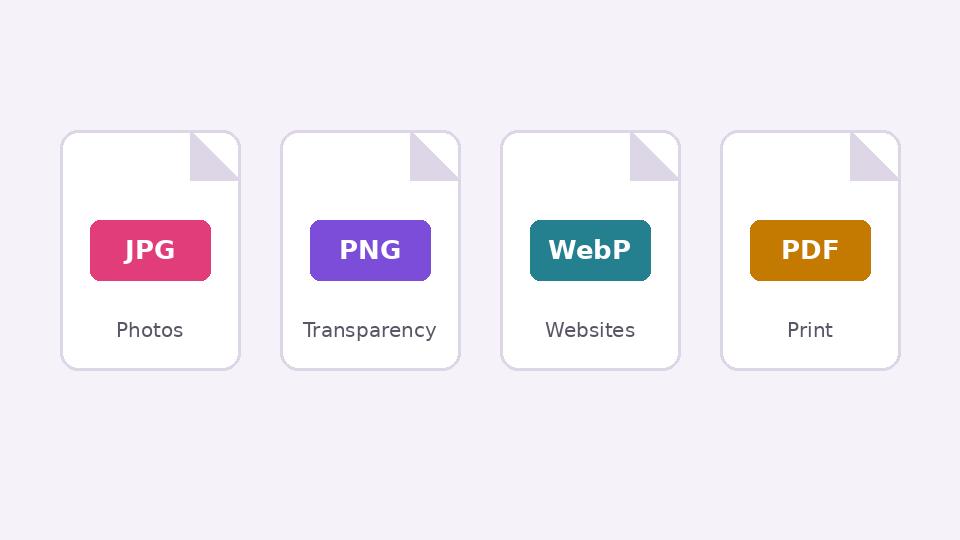
JPG, PNG, WebP or PDF? Choosing the right format when you export
What each image format is good at, when transparency matters, and how to keep files small without making them look worse.
 Tutorial · Photo
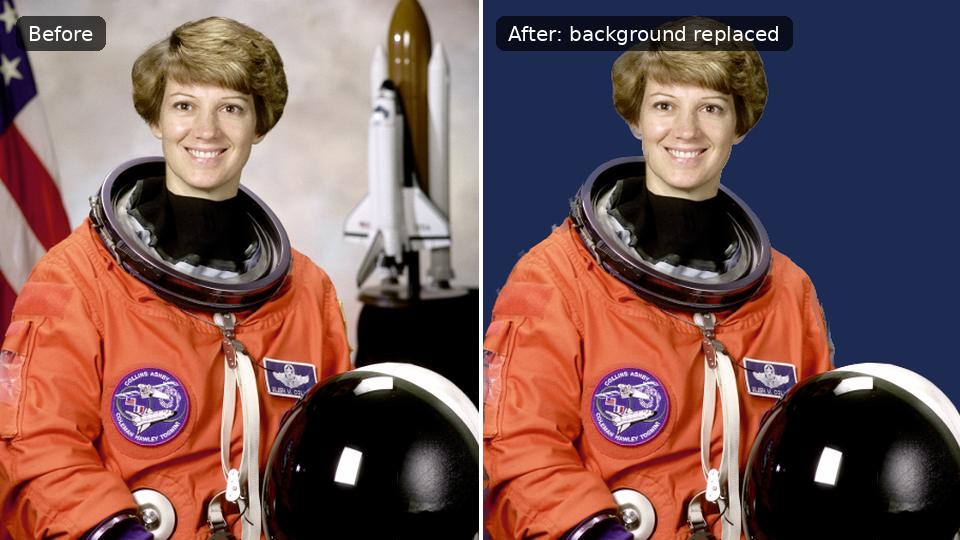
How to remove the background from a photo in Kreeato
Cut out a person or product in one click, keep only the object you selected, clean up the edges and export a transparent PNG.